What is the AI Interactive Builder?
The AI Interactive Builder is an AI-powered tool inside Dot.vu Studio that helps you create interactive components and experiences using natural language prompts.
Instead of manually building components from scratch, you describe what you want to create and the AI Interactive Builder generates a production-ready component that works with Dot.vu’s logic, actions, triggers, and data.
AI Interactive Builder is designed to speed up creation, not replace manual editing. All generated components can be edited like any other Dot.vu component.
What the AI Interactive Builder can create
- Quizzes and assessments
- Lead forms and interactive elements
- Marketing games and simple experiences
- Reusable components that can be saved as building blocks
Create Your First Component with the AI Interactive Builder
To create a component using the AI Interactive Builder:
1. Open Dot.vu Studio
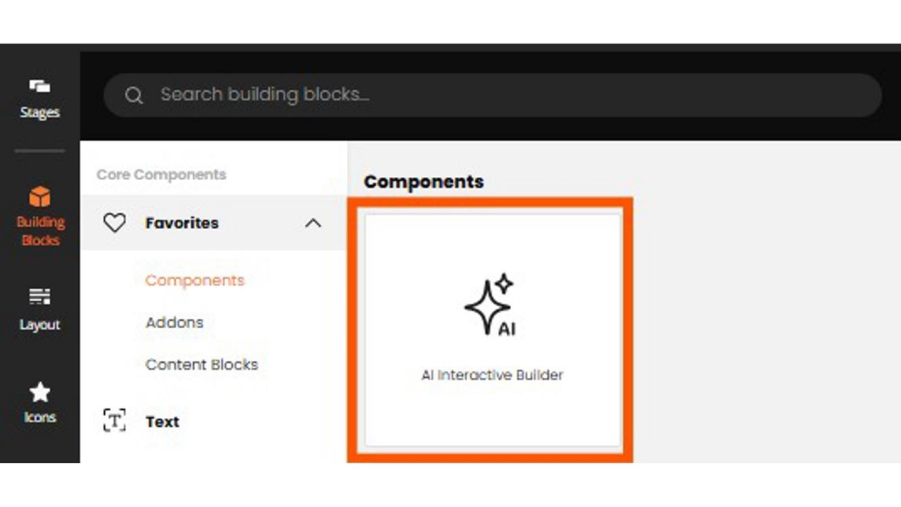
2. Open the AI Interactive Builder
You can do this in one of two ways:
- From the Dashboard:
Click AI Interactive Builder on the Dashboard.
This automatically creates a new project with the AI Interactive Builder already added and opens directly in the prompt view.

OR
- From within a project:
Open an existing project, then drag and drop the AI Interactive Builder from the building block menu into your experience.
3. Enter a prompt describing what you want to create
Example:
Create a 5-question quiz with outcomes
4. Click Generate
After Generation
The generated component will appear directly in your project and remains fully editable, just like any other Dot.vu component.
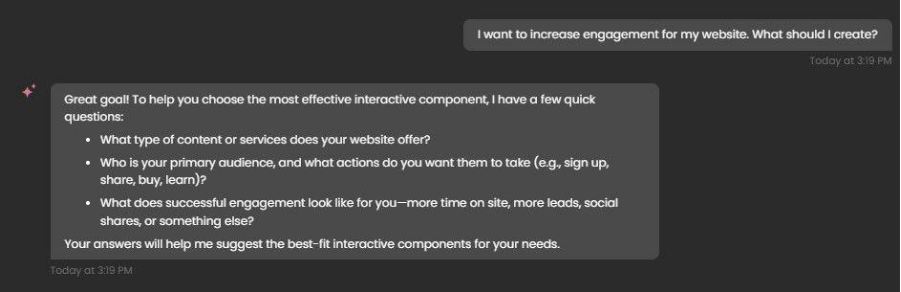
The AI Interactive Builder works in conversation mode, where it can both suggest ideas and help you refine your experience. You can start with a detailed prompt, a high-level goal, or even a business challenge, and receive recommendations for interactive components you can generate and customize.
Tip:
You don’t need a perfect prompt. Start with your objective or challenge, review the AI’s suggestions, and refine the experience through conversation. All changes remain fully editable in the Studio.
Edit & Customize an AI-Built Component
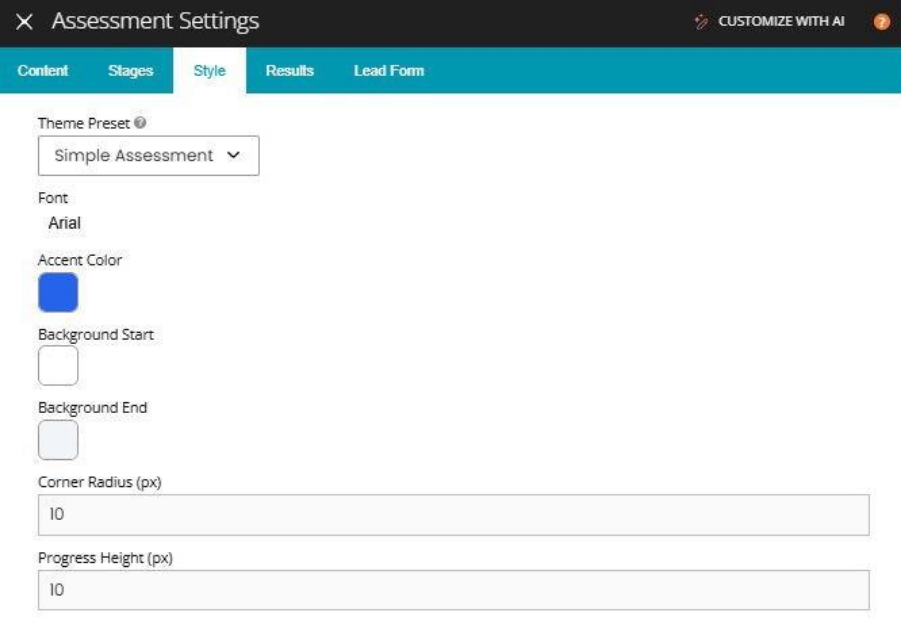
After generation, the AI-built component behaves like a standard Dot.vu component, giving you full manual control alongside AI-assisted refinement.
You can:
- Edit text and content
- Change colors, fonts, and layout
- Adjust settings, logic, and structure
- Ask the AI Interactive Builder to help refine specific parts (e.g. content, tone, branding)
To customize a component:
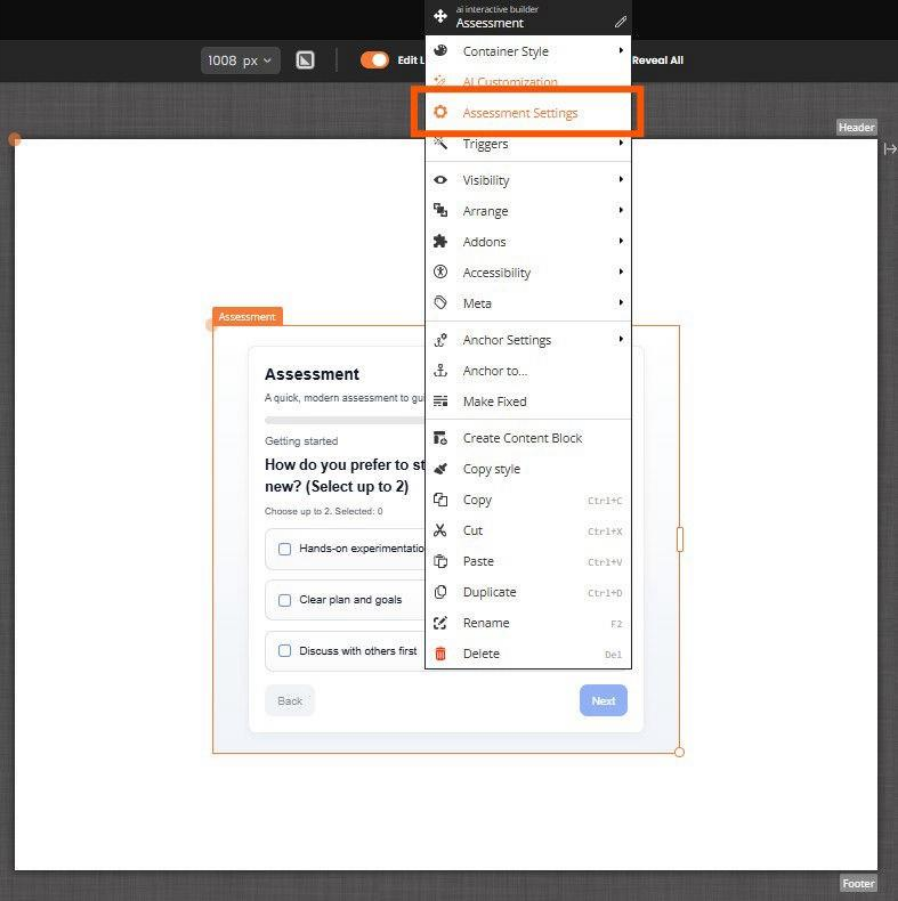
1. Select the AI-built component
2. Open the component settings
3. Apply your changes
All edits are manual and fully under your control.
Connect AI-Built Components to Actions & Triggers
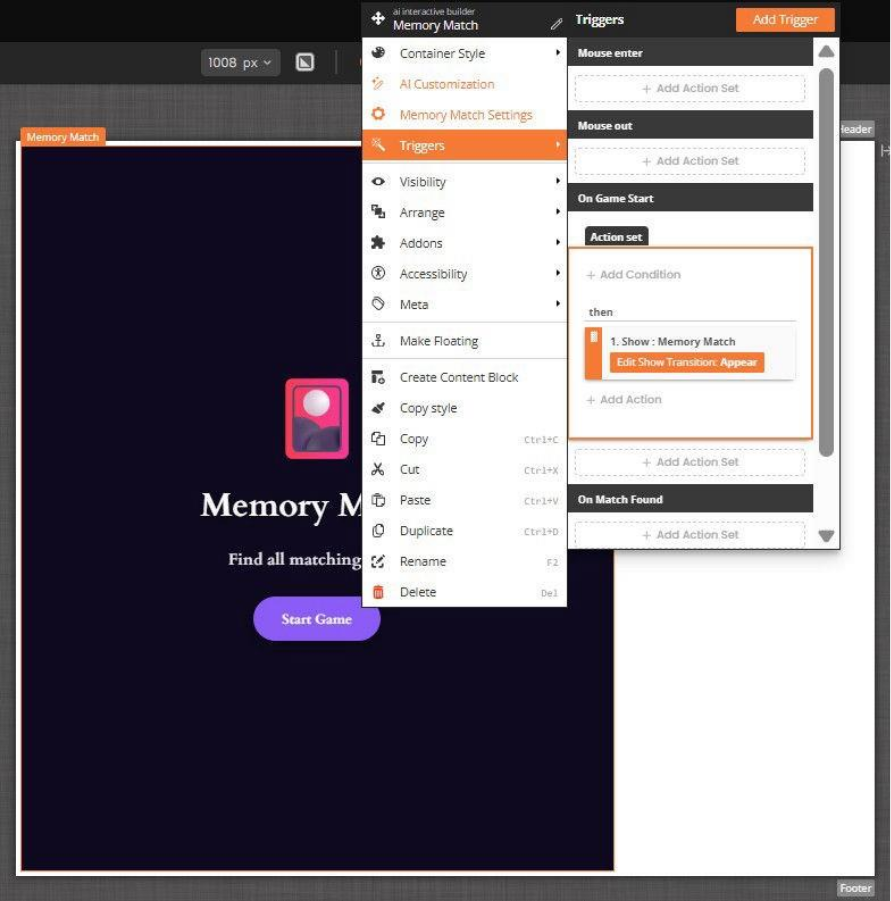
AI-built components fully support Dot.vu’s Actions and Triggers.
This allows you to define what happens when a user interacts with the component.
To add actions or triggers:
- Select the AI-built component
- Prompt what actions/trigger set you want to add, ex: “Add a trigger set to the CTA Button in the settings”
- Choose a trigger (e.g. click, submit, completion)
- Select the action you want to perform, such as:
- Show or hide another component
- Save user data
- Trigger a follow-up action
- Redirect to another page
AI Interactive Builder provides a functional setup, but you can always add or modify actions manually.
Iterate & Improve a Component (Re-Prompting)
You can continue improving an AI-built component by engaging with the AI Interactive Builder in conversation mode, where the AI can proactively suggest ways to enhance your experience.
Conversation mode allows the AI to:
- Suggest interactive experience types based on your goal
- Recommend structural improvements or content changes
- Propose refinements for tone, branding, or layout
- Help generate or improve content (e.g. quiz questions, outcomes, CTAs)
Examples of conversation prompts:
- I’m getting too few sales—what interactive experience would you recommend?
- How can I improve engagement in this quiz?
- Suggest ways to simplify this experience for mobile users
- What changes would make this feel more premium?
By default, the AI updates the existing component unless you explicitly ask it to create a new one.
Add Images & Videos to AI-Built Components
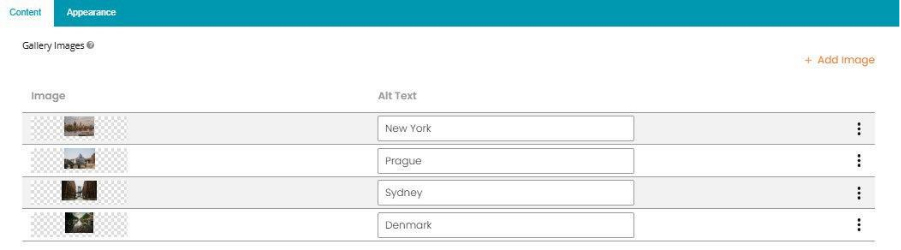
AI Interactive Builder creates the structure and logic, but images and videos are added manually to ensure full control over quality and branding.
To add images or videos:
- Select the AI-built component
- Prompt “Add an option to upload images in the card”
- Open the relevant content or media settings
- Upload or select your images or videos
- If needed you can also prompt the AI Interactive Builder to add Images settings: Fit to block, Fit in center or expand.
- Adjust placement and styling as needed
This ensures consistent performance and branding across projects.